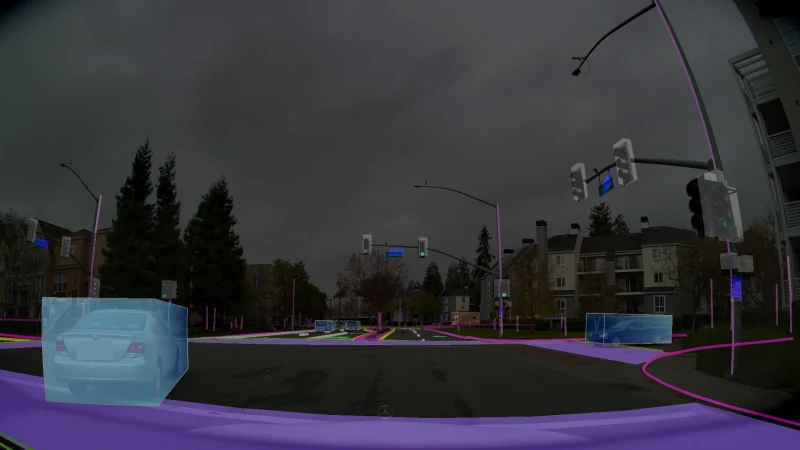
Run the official AlpaSim baseline on one reconstructed driving scene and inspect the resulting episode. In closed loop, the policy's trajectory affects the simulated ego vehicle, and the next observation is rendered from the updated state. A recorded-video replay keeps the recorded viewpoint. Start with the existing NuRec USDZ so you can check the simulator before attempting your own reconstruction. AlpaSim architecture
How does one frame change the next driving decision?
- InputA scene for the camera
NuRec .usdz · ego poseThe renderer can draw a camera image at the simulated vehicle’s position.
- ProcessLet the policy drive
camera observation → trajectoryThe baseline policy proposes a path. AlpaSim moves the vehicle along its simulated motion.
- OutputLog the drive
metrics.parquet · metrics_results.txtThe rollout records events such as collisions and going off-road.
Moving the vehicle changes the next camera image. That image is the next policy input.
The next camera observation changes in a closed loop
The renderer uses the NuRec scene and current ego pose to produce a camera observation. The policy reads observations and proposes a time-ordered trajectory. AlpaSim advances the ego state, so the next image can show a different lane position or following distance. That new image feeds back into the policy. Design at the pinned AlpaSim revision
Reconstructed scene + ego state → camera observation → policy trajectory
                     ↑                                        ↓
                     └─────────── updated ego state ──────────┘
Which files can you use to compare policies?
| File | Meaning |
|---|---|
Scene .usdz |
Input for the chosen NuRec scene. Fix the scene ID and renderer across a comparison. |
Episode metrics.parquet |
Tabular evaluation data. Check metric definitions and whether the run completed. |
aggregate/metrics_results.txt |
Evaluation summary across episodes. |
To compare collision metrics for two policies, hold the scene, renderer, and evaluation settings fixed and change the policy. This table describes the official example's output locations. Tutorial at the pinned revision
What you need
| Item | Start with |
|---|---|
| Host | A Linux host with an NVIDIA GPU. Follow the pinned onboarding guide for CUDA 12.8, the NVIDIA driver and Container Toolkit, Docker Compose/Buildx, Rust, and uv 0.9.17 or newer. Check that the container can see the GPU. |
| AlpaSim | Source revision affc2ea, local Docker Compose, topology=1gpu, the tutorial's VaVAM baseline driver, and the default NuRec renderer. |
| Scene access | Request access to NVIDIA's gated NuRec dataset on Hugging Face, and set a read token as HF_TOKEN in the shell. Keep it out of saved commands and run artifacts you share. |
| Scene | Start with the tutorial's clipgt-02eadd92-02f1-46d8-86fe-a9e338fed0b6 scene. The pinned scene catalog maps it to the 26.01 sample release. |
Official onboarding · NuRec dataset and access terms · Scene catalog
1. Run one official scene
1. Prepare the example folder on the GPU machine
Open a terminal on the Linux host after checking GPU access. Once NuRec access is approved, set the read token as HF_TOKEN in this terminal. The commands below fetch the tutorial revision and enter its folder.
git clone https://github.com/NVlabs/alpasim.git
cd alpasim
git checkout affc2eab209fa43bdfa2f26c0f8d437922d78a68
2. Prepare the environment and get the baseline policy
Run these two lines in the same terminal. The first prepares your current shell. The second downloads VaVAM, the baseline policy used to drive through the example scene.
source setup_local_env.sh
bash data/download_vavam_assets.sh --model vavam-b
3. Run one driving scene
When the setup finishes, paste the following block as a whole. The topology option uses one GPU. The scene_ids option picks the input scene, and wizard.log_dir chooses where outputs go.
uv run alpasim_wizard deploy=local topology=1gpu driver=vavam \
  'scenes.scene_ids=[clipgt-02eadd92-02f1-46d8-86fe-a9e338fed0b6]' \
  "wizard.log_dir=$PWD/run-baseline"
The first run can include image and model downloads. A GatedRepoError means scene access or token permissions need attention. When reusing an existing installation, check the scene-catalog note about stale 26.01 and 26.04 caches. Official Docker tutorial · Scene cache notes
2. Confirm the result and set a baseline
| Check | Where to look |
|---|---|
| Did the rollout finish? | Find the _complete marker and metrics.parquet under the corresponding run-baseline/rollouts/ episode. Use the service logs to diagnose incomplete rollouts. |
| What did the car see and do? | When evaluation video is enabled, open the clip in run-baseline/eval/videos/ or the aggregate video directory. Match any event to the same episode in the rollout logs. |
| What should I compare? | Open run-baseline/aggregate/metrics_results.txt. Start with at-fault collision and off-road events. One successful run confirms the setup and provides a baseline, with broader conclusions requiring more scenarios. |
For a comparison, use a new output directory and keep the scene artifact UUID, renderer and camera configuration, vehicle/traffic settings, and evaluation settings fixed. Save the resolved wizard configuration, then change only the driver, using policies compatible with the same camera setup. A scene ID can refer to multiple artifacts, so record the selected artifact UUID and Hugging Face revision with the results. AlpaSim result layout · Official metrics guide
3. Extend to your own driving logs
- Prepare a short segment with synchronized camera frames, camera calibration, and ego poses. Convert the segment to NCore and check it against the official NuRec input requirements. Map and tracked-actor data depend on the scene and the features you plan to use.
- Package the reconstruction as a compatible USDZ and check it with the NuRec renderer. Start by re-rendering the original camera viewpoints. Check lane edges, actor timing, and gaps from occlusions before comparing novel views.
- Prepare the scenario and its route, maps, and simulation metadata for AlpaSim. Check the packaged contents against the official scene schema and renderer version, then run the same evaluation on this scene. Use the original sample run to isolate pipeline problems.
Prepare data with NCore · Reconstruct an AV scene · NuRec scaling and scene layers · Dataset scene format
Related tools and verification
- Post-training · AlpaGym adds reinforcement learning on supported AlpaSim workflows. Alpamayo Recipes covers model post-training and deployment.
- Alternative renderer · OmniDreams via FlashDreams is a separate renderer setup with its own scene, camera, checkpoint, and GPU requirements.
- Licenses · AlpaSim code is Apache-2.0. VaVAM assets, the gated NuRec data and artifacts, and container components have separate terms. AlpaSim license · NuRec dataset card
- Verification status · The pinned tutorial, scene entry, and output paths were checked against official sources. A local GPU closed-loop run using a prepared NuRec scene completed on November 15, 2026 at AlpaSim revision
96a33bc; this guide pins the separate documented revisionaffc2ea. Local completion does not establish policy quality. The dataset-derived recordings and metrics remain local under the dataset's separate access and disclosure terms. Reconstruction from private driving logs has not been verified.