Robotics
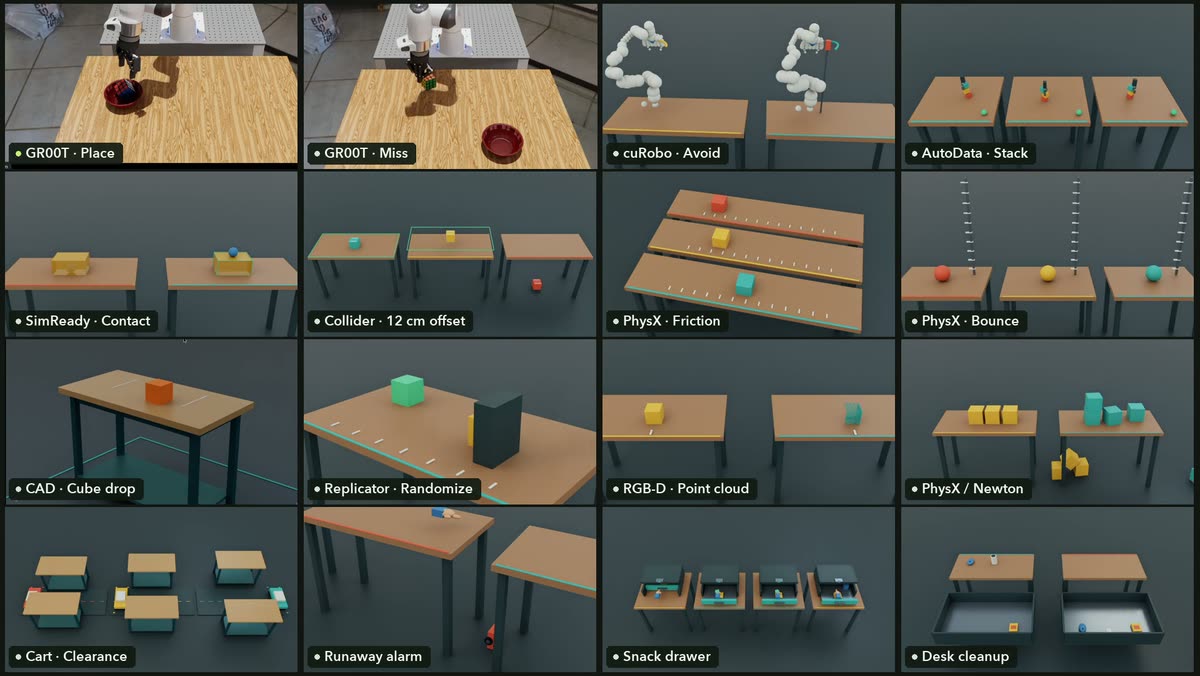
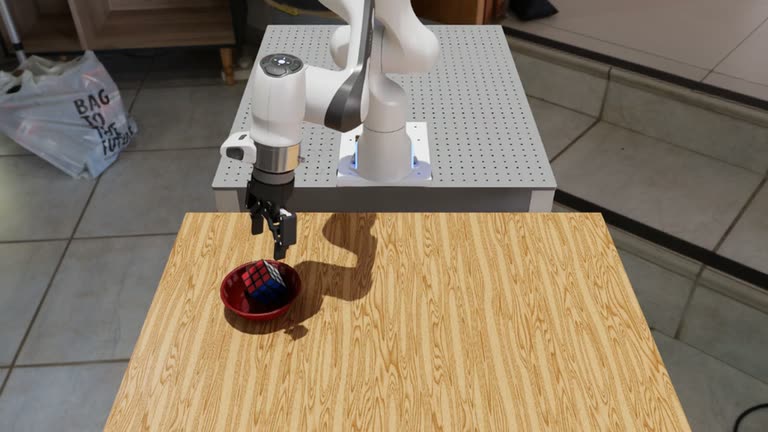
Judge a GR00T pick-and-place trial, explore obstacle avoidance, and follow a Microduck walking policy.
- Isaac Lab
- GR00T
- cuRobo
Browser lab · recorded runs and code
Explore this fieldFree hands-on learning for developers
Explore robotics, physics engines, world models, and autonomous driving through NVIDIA tools. Start with a recorded experiment or browser lab, then use the code and guides to run your own.
See the result, understand the inputs and outputs, then choose a lab. Each field shows what you can try now and what needs a GPU, model, or dataset.
Judge a GR00T pick-and-place trial, explore obstacle avoidance, and follow a Microduck walking policy.
Browser lab · recorded runs and code
Explore this fieldCompare collision shapes, friction, and bouncing in Isaac Sim; inspect Newton and Warp simulation results.
Recorded runs · scripts and USD scenes
Explore this fieldGenerate a 3D world with WorldGen, explore fVDB reconstruction and procedural houses, then compare Marble, Lyra and video models.
Interactive 3DGS · Recorded experiments · generation and reconstruction separated
Explore this fieldSee city, rain, sunset and fog from real CARLA ego cameras. Follow with Alpamayo inference and AlpaSim policy evaluation.
CARLA recordings · source, sensor poses and checks
Explore this fieldEach path takes you from the first step to a result you can check.
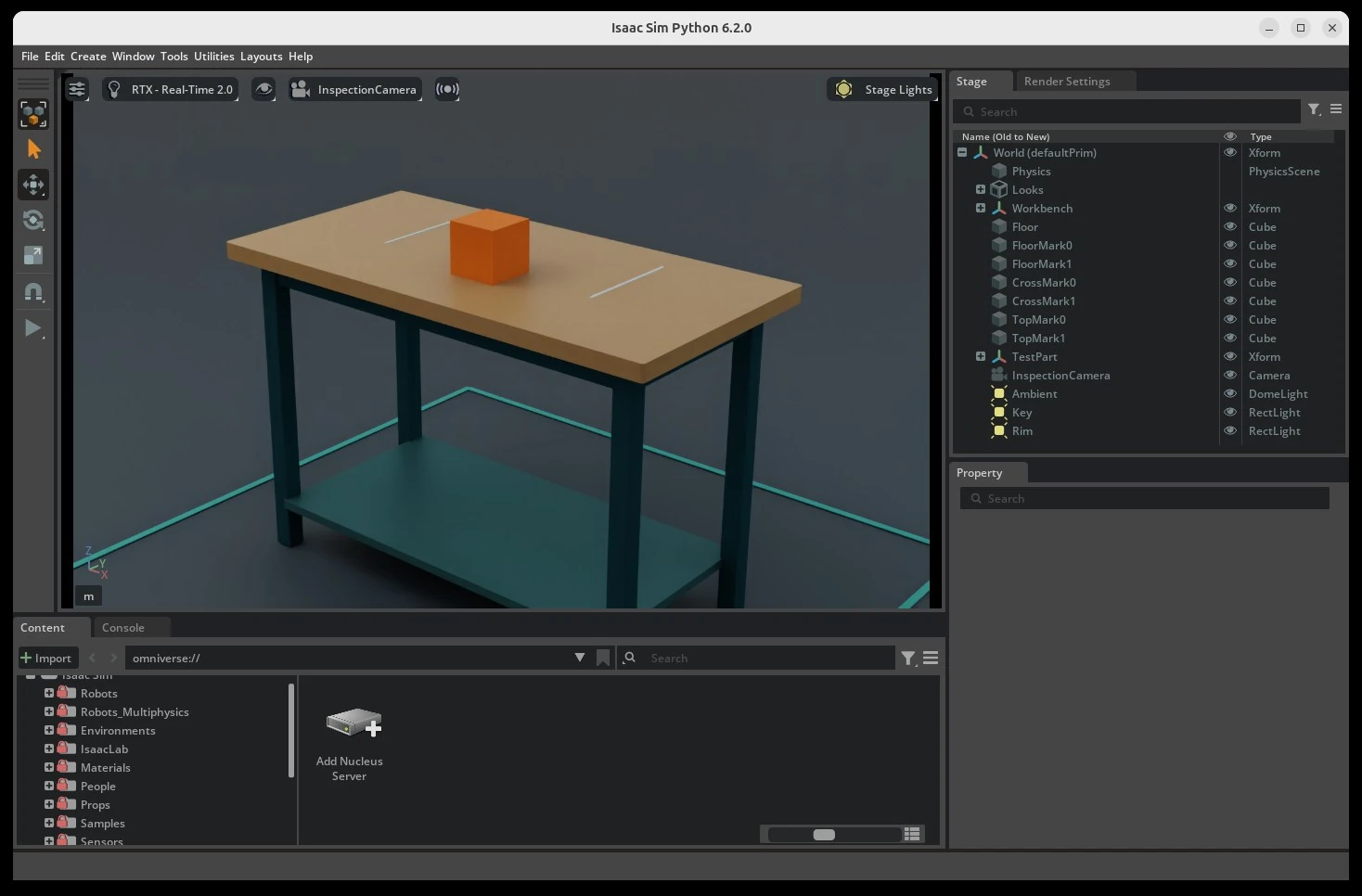
Browser → Python → RTX
Build a workbench scene and generate aligned RGB, depth, and segmentation data.
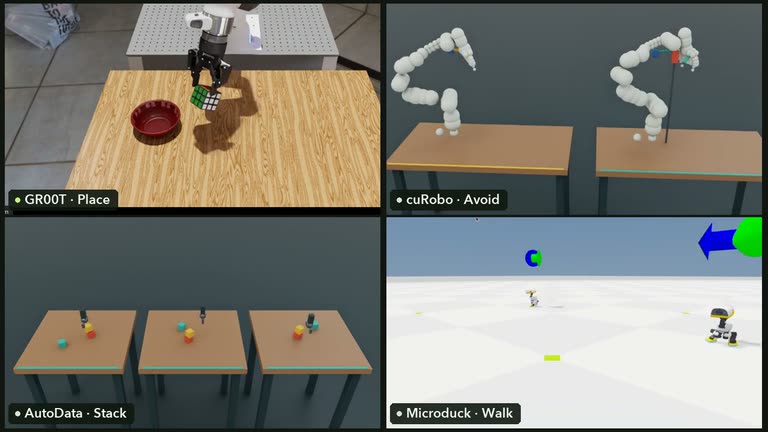
Browser → RTX
Score a GR00T run, check an obstacle-aware path, and train a walking policy.
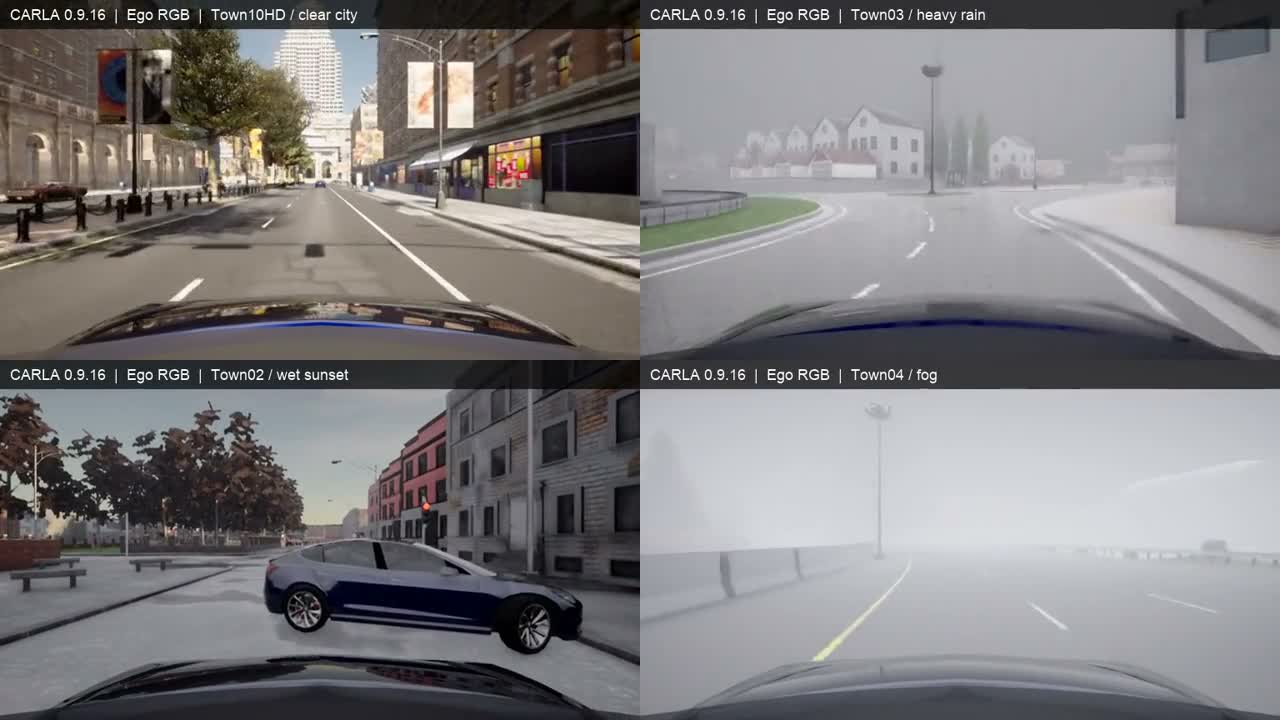
Recorded cameras → inference → evaluation
Start with real CARLA camera recordings, inspect Alpamayo outputs, then follow AlpaSim policy evaluation.
Compare results once, then pick a scene or tool to try on your own.
Use the same scripts, scenes, and saved outputs shown in the labs. If you’re new to NVIDIA tools, start with the setup guides.
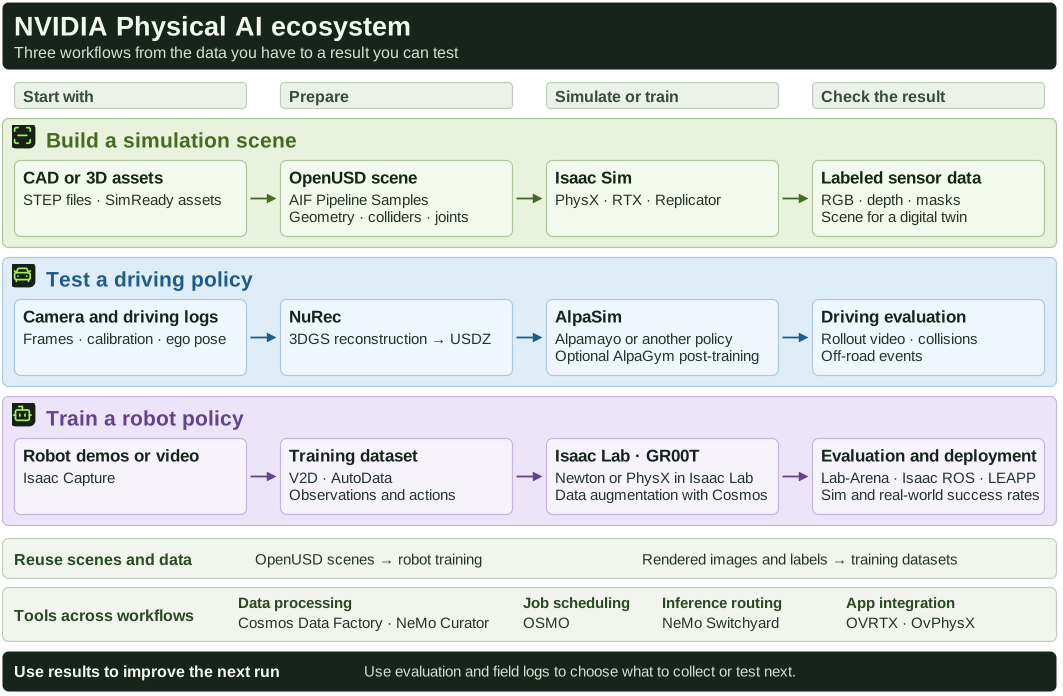
When you have a scene, driving log, or robot demonstration, use the map to find what you need for the next step.
Start with the input you have. The map traces how 3D assets, driving logs, and robot demonstrations each lead to a result you can evaluate.
Open full-size map
Choose a goal and trace it through the datasets, catalog, guides, and result checks.
Data and assets
Start with a STEP file and the real tabletop dimensions.
Browse 3D assetsHands-on guide
Bring in the workbench and add a collider to the tabletop.
Follow the CAD guideResult check
Check the tabletop dimensions and watch the cube settle on it.
Run the collision checkData and assets
Start with a sample scene from the NuRec driving dataset.
Find the driving datasetCatalog
Reconstruct the driving scene so it can be rendered from new viewpoints.
Find NuRec in the catalogHands-on guide
Run a baseline driving policy in the reconstructed scene.
Follow the AlpaSim guideResult check
Review the driving video and metrics before comparing policies.
Find the recorded metricsData and assets
Check what the recorded cameras, observations, and actions contain.
Browse demonstration datasetsCatalog
Check whether the checkpoint supports your robot or benchmark.
Compare GR00T checkpointsHands-on guide
Use the official example to check input and action formats before running the policy.
Follow the model guideResult check
Record the success criteria and initial conditions to compare later runs.
Open the evaluation checklist