Newton is a Warp-based physics engine for robotics. It owns the numerical world state and advances it through a selected solver. In a robot learning stack, the environment still defines observations, actions, rewards, and episode resets.
What does a Newton step write out?
- InputBuild the physics model
bodies · colliders · jointsSet geometry and initial poses.
- ProcessAdvance time
contacts + solver + ΔtThe solver computes the next configuration.
- OutputInspect the states
newton-poses.npyCompare equivalent bodies and timestamps across runs.
Contact detection and solving
The physics model contains bodies, colliders, joints, and initial state. This lab detects contacts at the current pose and passes the state, contacts, and time step to the XPBD solver. The solver computes the next state, which becomes the input to the next step. Newton repository · Lab step loop
Read a step and a position
In newton-poses.npy, poses[120, 0, :3] gives the first box’s position [x, y, z]. Index 0 is the initial pose, so index 120 is one second at 120 Hz. In the saved comparison, after two seconds the top box is at 0.0860 m in PhysX and 0.0859 m in Newton. Match the body and timestamp, then inspect horizontal position as well as height. Physics lab
Newton 1.8
Newton 1.8.0 adds the experimental Steel solver for articulated rigid bodies and contact-rich reinforcement learning, routed tendons for XPBD and VBD, and more detailed deformable contacts and rendering. The release also changes VBD defaults and imported joint damping behavior, so compare contacts and trajectories when migrating a tuned scene. Newton 1.8.0 release and migration notes
Isaac Lab 3.0 and Isaac Sim 6.2 target Newton 1.6.1. Use the dependency versions of the simulator or training stack that will run your task. Isaac Lab 3.0 release · Isaac Sim 6.2 release notes
Architecture
| Component | Responsibility and data boundary |
|---|---|
ModelBuilder → Model |
The builder defines bodies, joints, shapes, and contact parameters, then finalizes the topology and model arrays on the target device. |
State / Control |
State holds changing quantities such as positions and velocities. Control carries actuator inputs such as joint targets or efforts. This separation lets the same topology be reused across simulation steps. |
Contacts / SolverBase.step |
Contact buffers carry collision data when the chosen solver consumes Newton-generated contacts. SolverMuJoCo, Featherstone, and XPBD have different supported features and contact modes. |
| Warp | Device arrays and kernels back the computation. A policy can consume selected state data through the surrounding simulation or training framework. |
Guide diagram based on the official references below.
flowchart LR
    asset["Robot description and contact settings"]
    model["ModelBuilder and Model"]
    state["State at step t"]
    control["Actuator Control"]
    contact["Collision pipeline and Contacts"]
    step["Selected solver step"]
    out["State at step t + 1"]
    asset --> model
    model --> contact
    model --> step
    state --> contact
    state --> step
    control --> step
    contact --> step
    step --> out
Official figures and examples

NVIDIA’s official architecture situates Newton over Warp and OpenUSD and shows its solver and simulator integration boundaries. Original figure and context
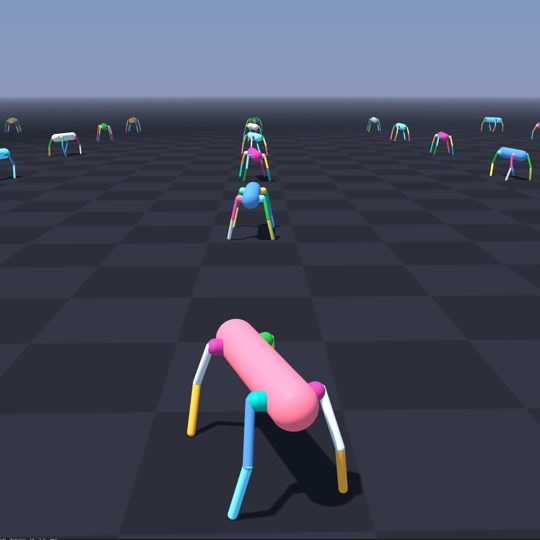
Newton’s URDF example visualizes an articulated model after importing its description. Use it to check orientation and joint behavior before scripting a task. Original figure and context
Walkthrough
- Start with the official URDF example and inspect the robot pose and collision geometry. Define joint drives, floor and object materials, and the integration timestep before selecting a solver.
- For a grasp experiment, apply finger targets through
Control. Compute contacts if the solver uses Newton contacts, then step into the output state and repeat for the physics substeps. Compare object motion across trial variants. - Log joint trajectories, contacts and object pose for policy observations or analysis. Wrap the same model in Isaac Lab only after the standalone model behaves as expected.
Validation
- Check the solver feature matrix for articulation, deformables, and contact modes. Contact parameters can have solver-dependent interpretations.
- On a fixed initial condition, reduce the timestep and compare penetration, resting stability and actuator effort before collecting training rollouts.
License and scope
The Newton repository uses Apache-2.0. Dependencies and robot assets have their own terms. Newton 1.8 LICENSE
Related guides
Warp · Isaac Lab · MuJoCo Warp