AutoData expands a small set of successful robot demonstrations into simulated trajectories. A task definition tells the generator how to reset a scene, identify the reference object and judge success. The generated dataset contains robot actions and observations from replay in the simulator.
How does a source demonstration become a new one?
- InputStart from demonstrations
seed episode + object posesLocate action segments such as grasp and placement.
- ProcessGenerate for a new scene
retargeted segment → simulationAdapt the segments to rearranged objects and execute them.
- OutputSave successful attempts
episodes + success countersUse the task checks to decide which attempts to keep.
Break the task into reusable segments
A stacking demonstration can contain approach, grasp, carry, and placement segments. MimicGen can express a grasp segment relative to the cube and adapt it to a new cube pose. The simulator executes the adapted sequence and checks task success. The resulting episode stores observations and actions in order, with success information recorded according to the task.
Read attempted and retained episodes together
The recorded run has num_attempts=6, num_success=3, and num_failures=3. For demo_0, recorded_frames=253 is the stored length and first_success_frame=243 marks the first successful frame. Compare initial conditions and rejected attempts alongside the retained examples to see which layouts are underrepresented. Robot motion and demonstrations lab · AutoData project
Architecture and data flow
| Component | Inputs, processing and outputs |
|---|---|
| Source demonstrations | Annotated episodes define subtask boundaries, the reference object and the demonstrated end-effector motion. A subtask can be expressed relative to its object so it can be reused at another pose. |
| Generation algorithm | MimicGen transforms and replays the object-relative segment in the new reset. SkillGen uses cuRobo to plan the transit to the adapted segment before executing the skill. |
| Simulation and task checks | The simulator executes target motions and the task applies termination and success checks. The output contains rollouts with actual simulation observations and actions. |
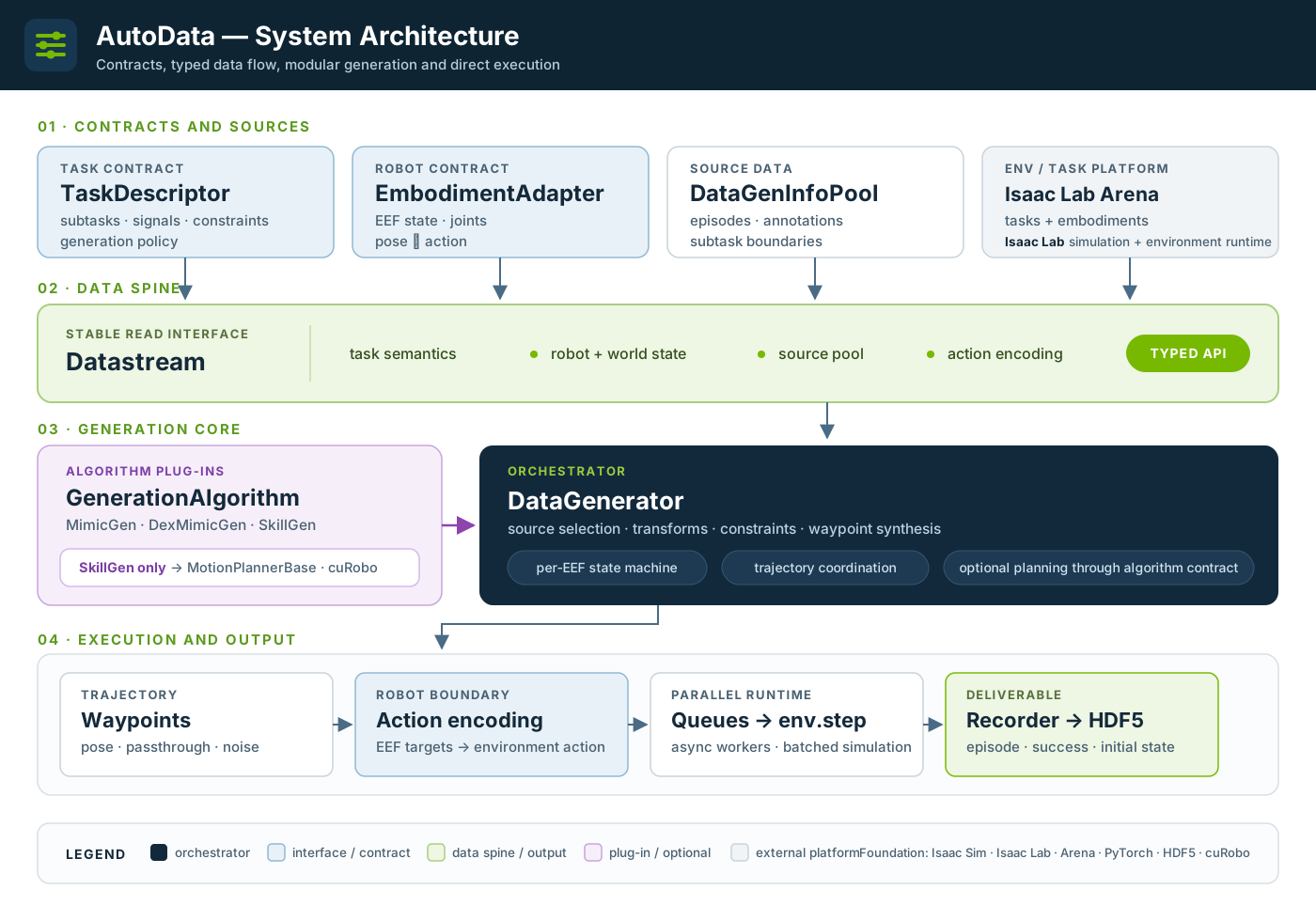
The official architecture separates input demonstrations, generation logic and simulation. The task and simulator remain involved when a demonstration segment is reused in a changed scene. Official figure source
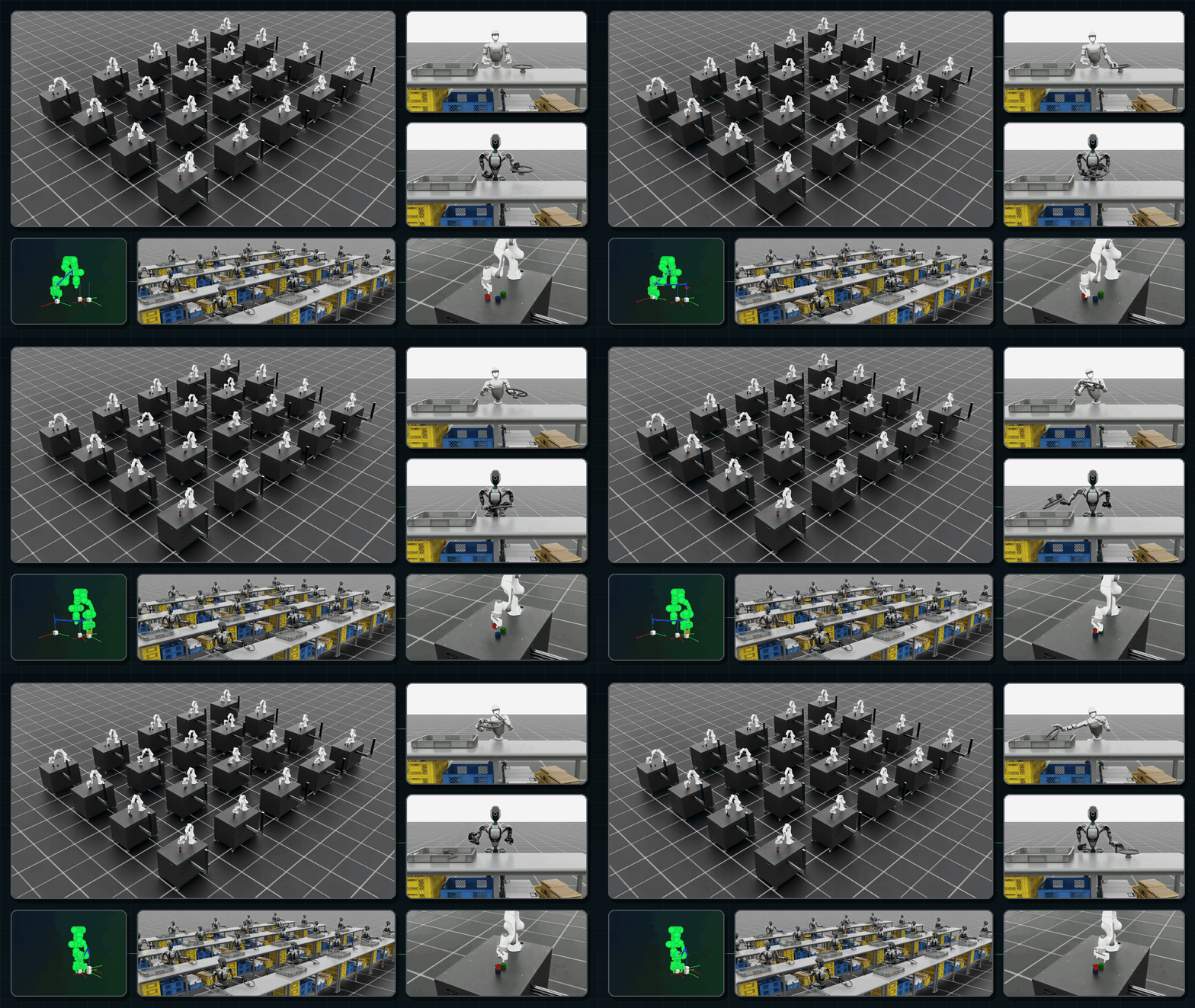
The repository demonstration visualizes rollouts across scene variations. Compare the changed initial arrangement and the resulting executed paths. Official figure source
Worked example
- Start with successful pick-and-place trajectories and mark grasp and place boundaries and their object references.
- Move the object or change the fixture position during resets. Choose interpolation or a planned transit based on obstacles in the scene.
- Replay accepted examples and keep the dataset configuration, task success criteria and asset versions with the generated demonstrations.
What to verify
- Compare success by reset condition rather than only total accepted episodes. Check whether difficult initial poses are systematically missing from the generated dataset.
- Inspect the join between transit and skill segments for collisions, discontinuities and incorrect gripper timing.
Official references and terms
The repository code uses Apache-2.0. Check the separate terms of Isaac Sim and any cuRobo components used by your configuration.